GlobalProtect OpenConnect Review
Download and setup notes for GlobalProtect OpenConnect. Useful links are listed below.
Download starts through this site’s download flow (operator MySoft package when uploaded).
GlobalProtect OpenConnect DownloadFree for PC · site download
Overview
This Windows VPN client follows the GlobalProtect / OpenConnect workflow: enter a portal, authenticate, establish a tunnel, and monitor connection status from the desktop UI. Settings panels cover reconnect behavior and notifications. This guide walks through install, portal entry, authentication, status checks, and preferences — with software UI screenshots.
Why Choose GlobalProtect OpenConnect
- Familiar portal-based VPN flow on Windows
- Visible connect progress and connected status
- Settings panel for day-to-day client behavior
- Works with helpdesk-friendly screenshotable dialogs
- Documented install path for first-time remote users
Key Features
GlobalProtect OpenConnect for Windows targets users who need a familiar portal → login → tunnel workflow. The UI emphasizes portal entry, authentication dialogs, connection progress, and post-connect status so helpdesk tickets stay shorter. Use it alongside your organization's GlobalProtect documentation for gateway and MFA requirements.
- Portal-first connect: Start from a portal FQDN instead of hand-editing obscure tunnel configs.
- Auth + MFA prompts: Supports interactive login dialogs used by modern VPN portals.
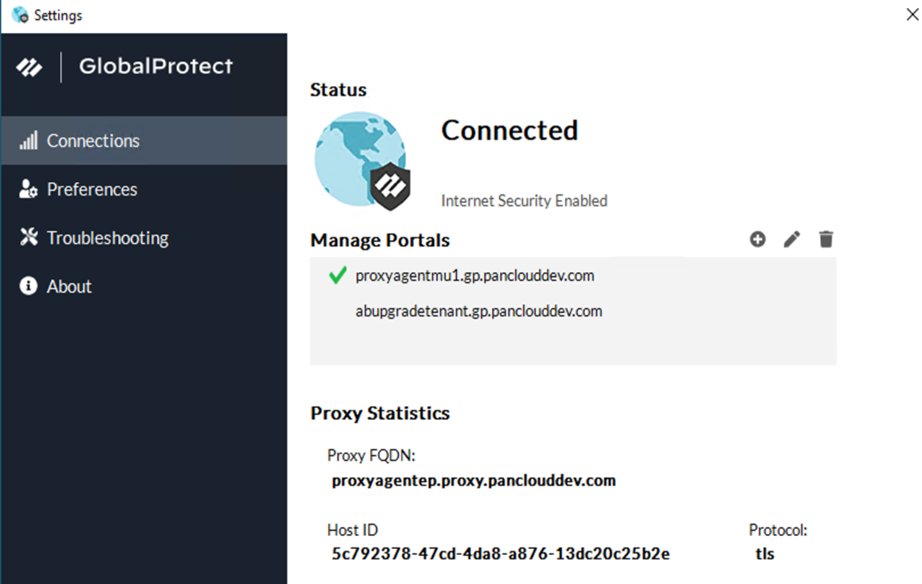
- Live status: See connecting vs connected states without digging in logs first.
- Gateway details: Review which gateway you landed on after a successful connect.
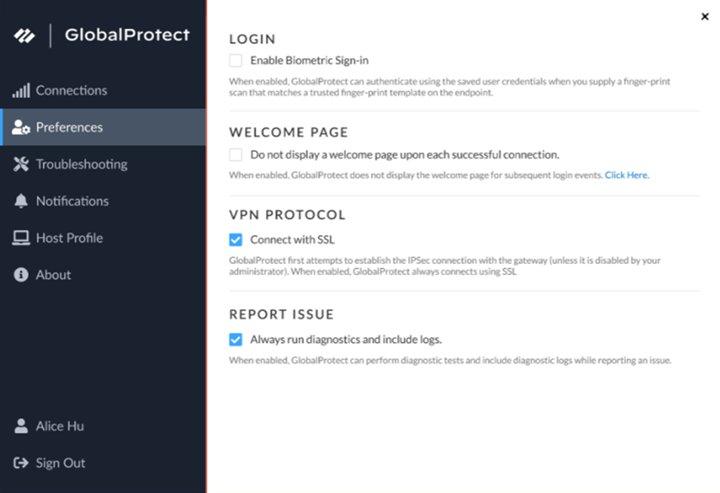
- Preferences: Adjust client behavior for everyday reconnects and notifications.
Screenshots


System Requirements
| Component | Minimum Requirement |
|---|---|
| Operating System | Windows 10 / 11 (64-bit) |
| Architecture | x64 |
| RAM | 4 GB |
| Disk | 200 MB free |
| Network | Internet for activation / VPN / cloud features |
Technical Specifications
| Operating System | Windows 10 / 11 (64-bit) |
|---|---|
| Architecture | x64 |
| RAM | 4 GB |
| Disk | 200 MB free |
| Network | Internet for activation / VPN / cloud features |
Pros and Cons
Pros
- Familiar portal-based VPN flow on Windows
- Visible connect progress and connected status
- Settings panel for day-to-day client behavior
- Works with helpdesk-friendly screenshotable dialogs
- Documented install path for first-time remote users
Cons
- Feature availability for GlobalProtect OpenConnect depends on your organization policy and license.
- Always prefer allowlisted downloads from this guide or the vendor site.
- UI labels can vary slightly between builds — screenshots may differ from your package.
GlobalProtect OpenConnect Setup in 5 Steps
- Install the Windows client. Download from [softorix.pro](https://softorix.pro/globalprotect-openconnect/) and complete setup.
- Enter portal address. Open the client and type your organization portal FQDN provided by IT.
- Authenticate. Sign in with username/password or SSO, then approve MFA if prompted.
- Confirm tunnel up. Wait until status shows Connected and routes/DNS look correct.
- Tune preferences. Optional: adjust reconnect and notification settings for daily use.
Recommendations
- Download GlobalProtect OpenConnect through this guide page or the official vendor channel.
- Confirm Windows 10/11 and free disk space before running setup.
- Keep the client updated when your vendor publishes security fixes.
Software Details
| Package | GlobalProtect OpenConnect for Windows |
|---|---|
| Release | 3.7.1 |
| Platform | windows, linux, macos |
| License | GPL-3.0 |
| Guide URL | https://softorix.pro/globalprotect-openconnect/ |
Useful Links
- 🌐 Download page — Windows client guide
- 📚 Palo Alto GlobalProtect docs — Vendor documentation
Frequently Asked Questions
Where does the Download button go?
It uses this site’s download flow (MySoft package when uploaded; otherwise the allowlisted official package).
Do screenshots match my build?
Screenshots show the software UI and may differ slightly from the download build version.
Is this the vendor website?
No — this is an independent Windows download/setup guide with UI documentation.
User Reviews
Short reader notes about GlobalProtect OpenConnect and this guide on softorix.
-
★★★★☆
“Nice guide for beginners”
-
★★★★★
“Perfect for first install”
-
★★★★★
“Setup steps were accurate”
-
★★★★★
“Clear GlobalProtect OpenConnect setup”
-
★★★★★
“Loved the screenshot section”
-
★★★★☆
“Clean download worked fine”
-
★★★★★
“GlobalProtect OpenConnect installs cleanly”
-
★★★★★
“Setup guide was clear”
-
★★★★★
“Quick start was painless”
-
★★★★★
“Site made setup easy”
-
★★★★☆
“Trusted GlobalProtect OpenConnect page”
-
★★★★★
“Official package linked correctly”
-
★★★★★
“Works well after install”
-
★★★★★
“Solid GlobalProtect OpenConnect guide”
-
★★★★★
“Trusted download link here”
-
★★★★☆
“Useful system requirements table”
-
★★★★★
“Great soft and site”
-
★★★★★
“Solid Windows desktop client”
-
★★★★★
“Helpful screenshots and notes”
-
★★★★★
“Fast page easy download”
-
★★★★☆
“GlobalProtect OpenConnect download was easy”
-
★★★★★
“Desktop install went fine”
-
★★★★★
“Virus scan badge reassuring”
-
★★★★★
“Short clear setup tips”
Leave a review
Share a short note about GlobalProtect OpenConnect. Reviews are moderated before they appear.